
Give different service teams different assignment policies without confusing ownership. This walkthrough uses an illustrative company setup. Adapt the policy to your organization and validate it before rollout.
Define the outcome before the rule
A useful starting policy is “Factory hardware goes to the Factory Infrastructure team by round robin; application access goes to the Application team for manual assignment.” Write both rules explicitly. A single broad automatic rule can otherwise produce the wrong experience for the second team.
Set the default and the exceptions
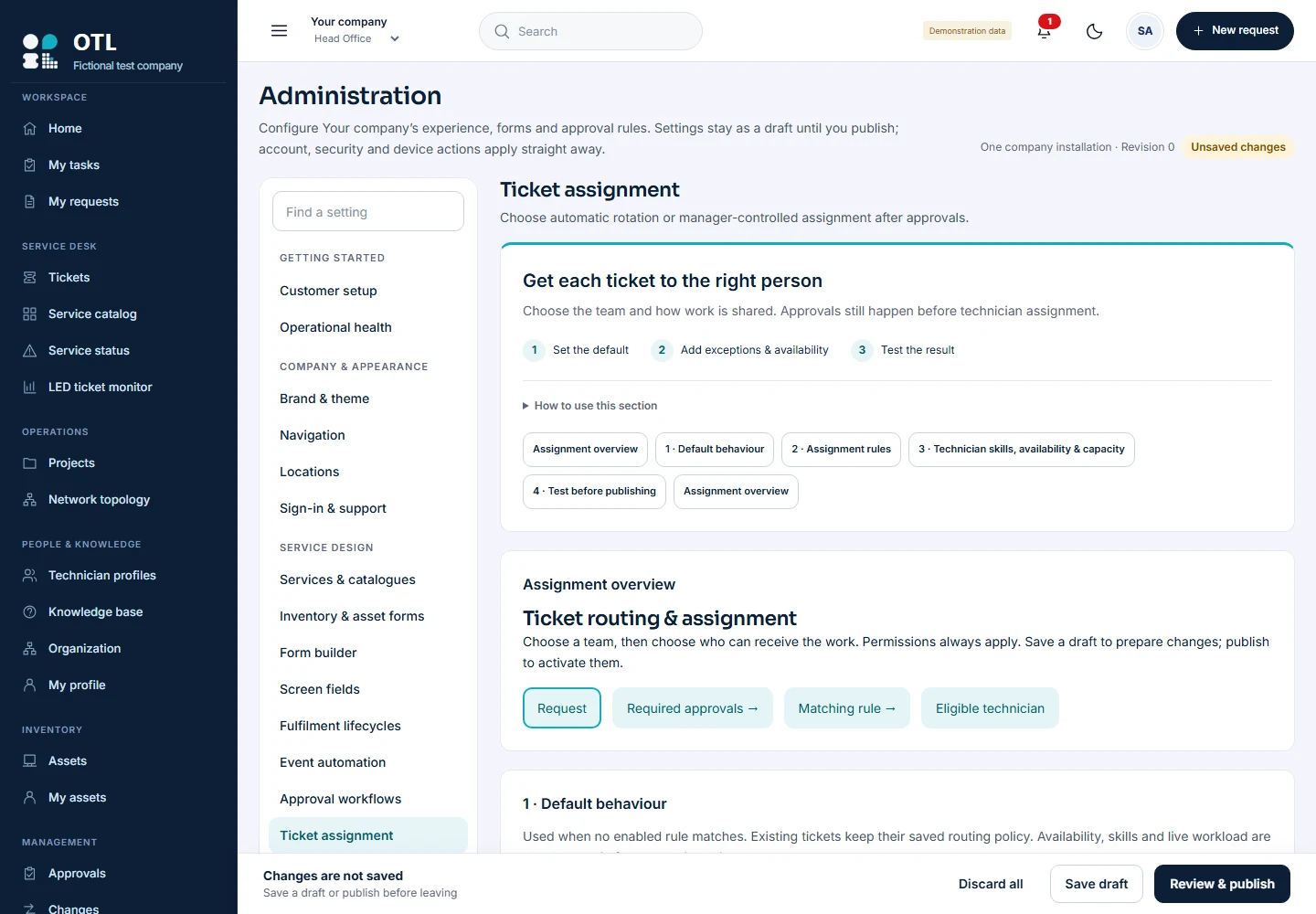
Open Administration → Ticket assignment. Review default behaviour first: it governs requests without an enabled matching rule. Add specific assignment rules for the relevant services and locations, select the responsible team, and choose the assignment method. Keep manual work visible to the manager or authorized assigner; manual does not mean ownerless work can disappear from the queue.
Make eligibility realistic
Configure technician skills, availability and capacity. Someone who belongs to a team may still be unavailable or already at their active-work limit. Round robin rotates among eligible candidates; it should not be interpreted as a promise that every person receives an identical total regardless of leave and workload.
Use the simulator to explain the choice
Preview a sample request for each service. Inspect the matching rule, selected team, method and skipped candidates. Test an employee from a different location and a case where no technician qualifies. Decide who will review that queue before publishing. The assignment overview in the screenshot shows approvals preceding the assignment decision.
Plan for requests nobody accepts
Set the supported unaccepted-ticket escalation behaviour and interval. Decide when the manager should be notified and when another eligible technician may be offered the work. Verify that background processing runs in the installation and review the resulting assignment history during a pilot.
Verify both teams after publication
Publish the reviewed draft. Raise one Infrastructure ticket and one Application ticket through their normal approval routes. Confirm that only the intended request is automatically assigned, while the other remains available for authorized manual assignment. Keep those two examples as regression checks when changing rules later.
Follow the procedure, step by step
Review the default
Open 1 · Default behaviour and choose the fallback assignment behaviour and limit.
Check: You know who will handle requests that do not match a custom rule.
Create an Infrastructure rule
In 2 · Assignment rules, click Add assignment rule. Enter Rule name and Priority, check Enabled, select Service family or Service type, Location and Catalogue entry. Choose Send to team and round-robin Assignment method.
Check: The rule matches only the intended Infrastructure work.
Set automatic eligibility
Select Technician roster, Required skills and Active-ticket limit. Leave the limit empty only to inherit the default.
Check: Automatic rules have a roster; all required skills must match.
Keep Applications manual
Add a separate rule for the Application service and team. Choose the manual assignment method and review priorities for overlap.
Check: The Application rule is not overridden by a broader automatic rule.
Add skills and profiles
In 3 · Technician skills, availability & capacity, enter one skill per line and Save draft to refresh selectors. Choose Technician, click Add technician profile and assign Skills.
Check: The profile belongs to the intended active technician.
Set capacity and pauses
Review Available now. Uncheck to pause and optionally set If paused, resume at (UTC). Set Individual active-ticket limit where needed.
Check: Assigned queued, in-progress, on-hold and waiting-for-requester work counts; resolved and closed work does not.
Set working hours
Enter Shift timezone (IANA), such as Asia/Karachi. Click Add weekly shift, select Shift starts on and local Start/End times.
Check: An earlier end means overnight; no shifts means any hour is eligible.
Record leave
Click Add leave interval. Enter Leave begins and Leave ends in UTC.
Check: Converted times match the intended local leave period.
Set acceptance handling
Review Acceptance deadline and its escalation action. Agree manager notification or re-offer behavior and verify the background worker is running.
Check: The team understands what happens to an unaccepted request.
Run a sample
In 4 · Test before publishing, set requester, beneficiary, catalogue, location, request type, priority and Sample time (UTC). Enter equipment/custom values where relevant. Click Preview approvals & assignment.
Check: Review the matched rule, team, selected technician and eligibility reasons. Simulation consumes no turn and sends no notification.
Test exclusions
Run samples during leave, outside shifts, at capacity and with no eligible roster.
Check: No candidate goes to manager review rather than falling through to a weaker rule.
Publish and pilot both services
Save draft, review and publish. Raise one request per service, complete approvals and inspect assignment history.
Check: Infrastructure is automatic; Applications remains manual. Authorized overrides include an audited reason.
Field reference and important rules
- Highest-priority match
- First matching rule wins; inspect overlaps explicitly.
- Skills
- Every required skill must match.
- Limits
- Empty values inherit the default.
- Time zones
- Shifts use IANA local time; leave/pause and simulator time are UTC.
- Simulation
- Uses real workload/rotation but does not consume a turn.
If something does not work
Technician excluded
Check account, team permission, roster, skills, shift, leave, pause and capacity.
Wrong service assigned
Inspect the winning rule and broad family matches.
Off-hours assignment
Check whether shifts are absent and verify timezone/overnight configuration.
Escalation absent
Check request acceptance state, interval, action and background processing.
Before you roll it out
Run the normal path and an exception with separate requester, approver and technician accounts. Compare the visible result with your written policy, and keep a record of the checks.