
Keep the familiar request experience while applying the right policy to each reason. This walkthrough uses an illustrative company setup. Adapt the policy to your organization and validate it before rollout.
Agree what the three purposes mean
Additional means another item is needed. Replacement means an existing device is being exchanged. Upgrade means a different capability is justified. Agree those definitions with your IT and department owners before configuring the available choices. Different purposes can share a route, but they should not lose the information that explains the need.
Configure the form and purpose options
In administration, configure the purpose options and relevant request fields. For replacement, collect the current asset and the reported issue. For upgrade, collect the business justification and any required declared amount. Make essential information required so the approval rule does not have to guess from a free-text subject.
Map each purpose to an approval route
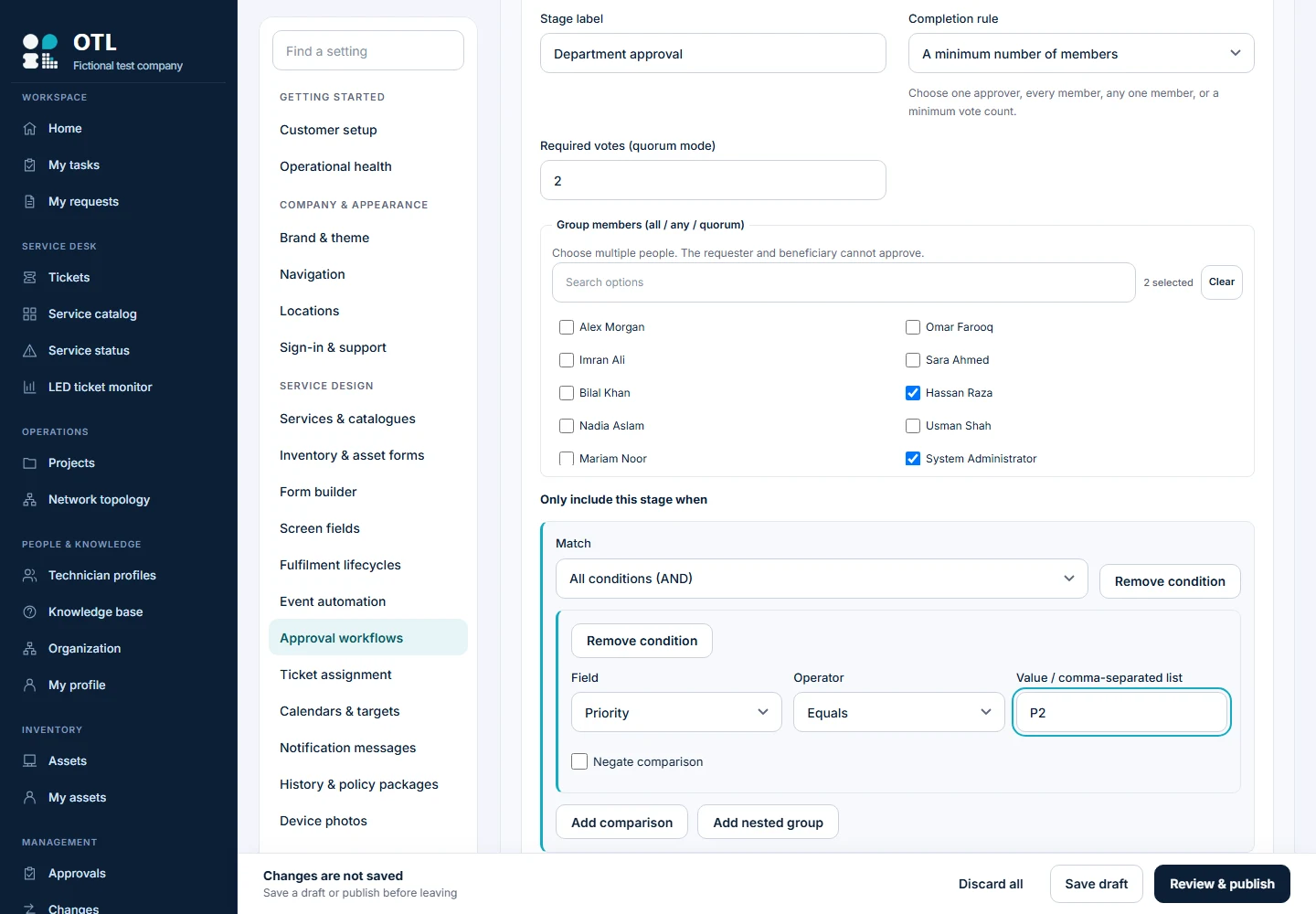
Use purpose and other supported request conditions in Approval workflows. An additional laptop might require the department and IT; an upgrade may include an extra conditional decision. Clone or reuse a common policy where supported rather than maintaining conflicting copies. The accompanying editor screenshot illustrates conditional stages, not a fixed route for all three purposes.
Compare preview with submission
Simulate each purpose with the same person, service, location and field values you will submit. Check the selected rule and approvers. Publish, then raise a pilot request for each scenario. A preview should be assessed against that exact input and configuration revision, not against a different employee or unpublished draft.
Keep approval separate from fulfilment
Approval confirms the need; it does not prove equipment exists or has been received. The technician still follows the asset reservation, issue and receipt process. For replacement, record the old device return and its condition. Do not mark a broken device available just because its custodian changed.
Include exception cases in acceptance
Test rejection, clarification, missing stock and an absent approver. Verify how your team records an item that will not be supplied, rather than assigning an unrelated asset merely to finish a ticket. Retain the actual decision and fulfilment history for later review.
Follow the procedure, step by step
Enable the purposes
Review Display label, Available to employees and Require existing asset for additional, replacement and upgrade. Rename labels only while preserving their meaning.
Check: The required purposes are visible and their labels make sense to employees.
Require device context
Enable Require existing asset for the relevant purposes.
Check: This collects the current device reference; it does not automatically return or issue equipment. Technician CRFs remain separate.
Prepare the form
In Form builder, select the request type and configure justification and required routing fields. Save the draft.
Check: Fields used by policy are collected; a spending condition uses a numeric field rather than free-text currency.
Create a purpose rule
In Approval workflows, click Add workflow. Set Request type and For request purpose, plus site, category, department or equipment restrictions. Add approval stages and conditions.
Check: The rule matches the intended purpose and does not lose to a higher-priority broad rule.
Copy where appropriate
Expand Copy this workflow to other equipment or catalogue options. Choose Destination type and targets, then Create workflow copies.
Check: Each copy retains intended stages but has reviewed selectors. Copies do not stay synchronized.
Test additional equipment
Use the simulator with additional purpose and required field values.
Check: No old-device selection is required unless you explicitly enabled that requirement; correct approvers resolve.
Test replacement
Use replacement with an assigned test asset. Repeat without one.
Check: The valid sample selects the expected route; the missing-asset case is blocked where configured.
Test upgrade boundaries
Provide the upgrade purpose, asset where required and declared amount/justification. Test below, equal to and above thresholds.
Check: Extra stages appear only under their configured conditions.
Publish the reviewed policy
Save draft, then Review & publish.
Check: The intended revision is published, rather than merely saved in the editor.
Submit as an employee
Open New request, choose the configured equipment service, select the purpose, complete the required fields and review the approval preview before submitting. Repeat for all three purposes.
Check: Actual stages match the preview for the same person, values and revision.
Complete fulfilment
As the technician, inspect requirements and stock. For replacement, record old-device return and condition, then issue the replacement through the request.
Check: Approval alone has not reserved or physically handed over stock; faulty equipment is not marked usable.
Confirm or record an exception
Complete required receipt confirmation. For an item that will not be supplied, use the supported disposition control and reason rather than assigning an unrelated asset.
Check: The history explains every requested item’s outcome and the final ticket state.
Field reference and important rules
- Display label
- Employee-facing wording, not a new internal purpose ID.
- Available to employees
- Whether the purpose can be selected.
- Require existing asset
- Requires reference to existing equipment; no automatic movement.
- For request purpose
- Matches additional, replacement or upgrade.
- Preview inputs
- Use the same requester, beneficiary and field values as actual submission.
If something does not work
Purpose absent
Check availability and publication.
Unexpected approvals
Check request type, purpose, selectors and rule priority.
Old device not returned
Record the physical return separately; purpose selection only records intent.
Preview differs
Compare input values and revision before diagnosing a rule-engine issue.
Before you roll it out
Run the normal path and an exception with separate requester, approver and technician accounts. Compare the visible result with your written policy, and keep a record of the checks.