
A practical guide to stock, shared equipment, replacements and resignation returns. This walkthrough uses an illustrative company setup. Adapt the policy to your organization and validate it before rollout.
Start with a trustworthy inventory
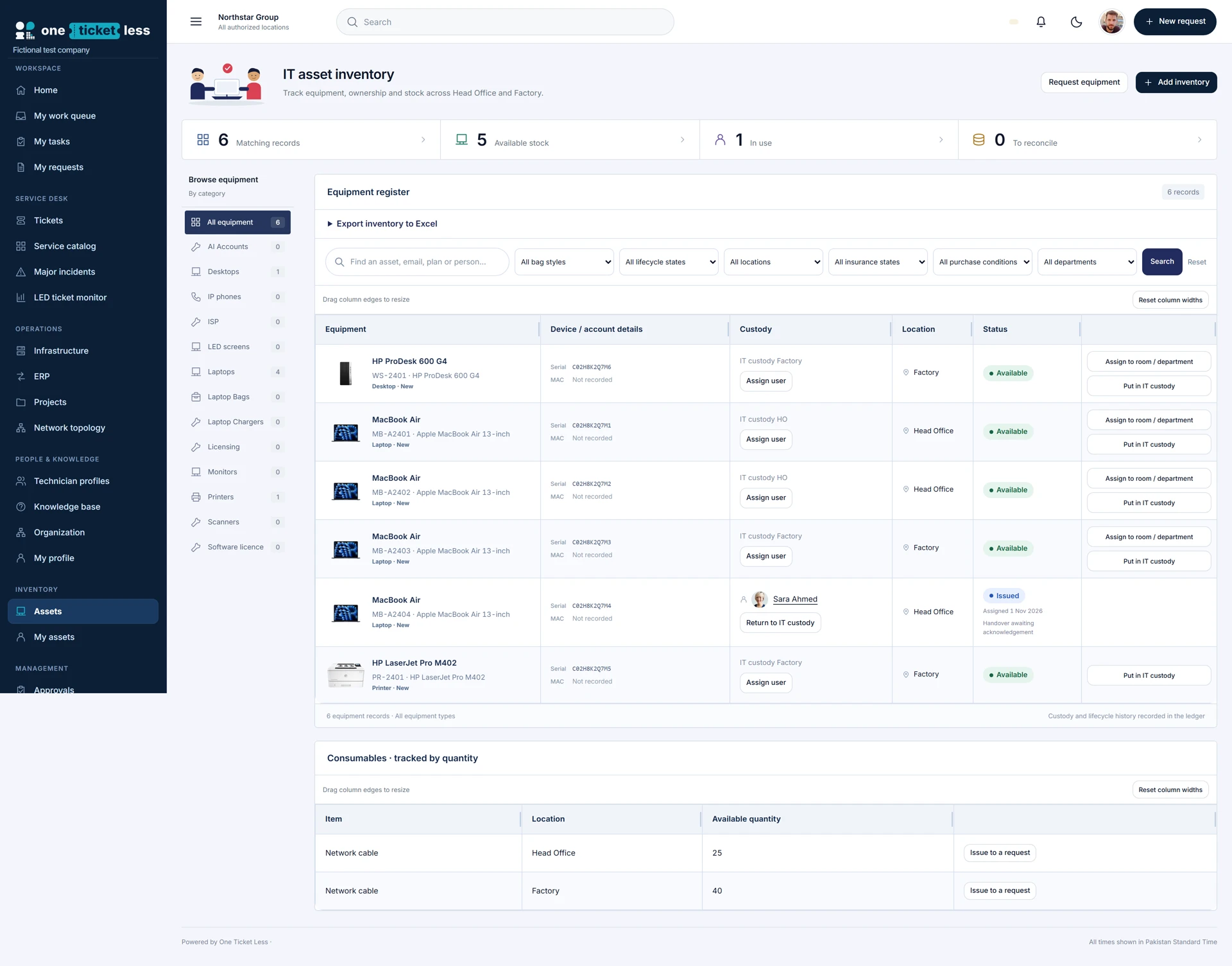
Review each asset’s tag, serial, category, location and condition. A record is only useful if it describes the physical item. Resolve imported custody information before treating stock counts as a promise of availability. The screenshot shows an illustrative inventory, not live customer equipment.
Choose the right kind of custodian
Use employee assignment for a personally issued device, room or department allocation for shared equipment, and IT custody for items held by the service team. A conference-room computer should not need an invented employee account. Keep the location accurate when the asset moves between sites.
Issue from available stock
Find an available asset, open its profile through the equipment name, and use the assignment action appropriate to the workflow. For ticket fulfilment, keep the asset linked to that request. Record handover and any required recipient confirmation instead of assuming an assignment entry proves physical receipt.
Return with a reason and condition
When taking equipment back, record whether the return follows a resignation, replacement or another supported reason. Capture the condition. A laptop with a fault, a dead device and a serviceable spare should not all become available stock. Use the appropriate lifecycle state while retaining the movement history.
Handle resignation without losing accountability
Review all assets assigned to the departing person. Confirm each physical return before moving it to IT custody at the correct site. Keep missing items attributable until recovered. Account deletion must not turn an unreturned laptop into available inventory.
Distinguish retirement from a bad record
Use scrap or disposal for real equipment that is being retired. Authorized deletion is for removing an active record while preserving audit history. Before either action, inspect linked requests and custody. Finish by checking the employee view, stock view and asset history agree with the physical outcome.
Follow the procedure, step by step
Locate the physical item
Open Assets, select category, and search/filter by location and lifecycle. Check tag and serial against the real equipment.
Check: The record is the correct individual device, not merely the same model.
Open the profile
Click the equipment name. Review custody, location, status, linked tickets and movement history.
Check: You know whether custody was confirmed or still requires imported-record reconciliation.
Assign available stock
Use Assign user in the Custody column or the profile’s corresponding action. Select the correct employee and review the dialog before confirming.
Check: For ticket fulfilment, use linked issuance so the request and asset remain connected.
Allocate a shared device
Use Assign to room / department and select its real destination and site.
Check: A conference room is not represented by a fake employee account.
Record a physical return
Use Return to IT custody or Record return where offered. Supply the destination, reason and condition requested in the dialog, then save.
Check: The device has actually been received and now shows the correct IT custodian.
Replace a faulty laptop
Identify both devices. Record the old laptop’s return and fault, keeping it in the appropriate non-available state. Issue the replacement separately through the approved work.
Check: The broken device is not included in usable stock; both movements remain traceable.
Process resignation
Review every asset assigned to the person. Record each confirmed return and leave unreturned items attributable until recovered.
Check: Deleting the employee account is not used as evidence of return.
Move a batch to custody
Select the intended stock records and use Put selected in IT custody. Review the count and common destination before confirming.
Check: No still-held employee equipment is included by accident.
Correct the location
Open Change location on the profile, choose the actual site and save. Recheck the inventory with that location filter.
Check: Location and custody both reflect reality; they are separate fields.
Record retirement or correct a bad record
Use the supported scrap/disposal lifecycle for real retired equipment. Use authorized deletion for records to remove from active use, after reviewing links and custody.
Check: Audit history is preserved; deletion is not a substitute for ordinary retirement.
Reconcile all views
Check stock totals, the employee’s assets and the profile history. Complete any required recipient acknowledgment with the actual recipient.
Check: Physical item, custody, location, lifecycle and ticket fulfilment agree.
Field reference and important rules
- Tag and serial
- Identify the individual device.
- Custody
- Employee, room, department or IT holding the item.
- Location
- Recorded site, separate from custodian.
- Lifecycle and condition
- Whether equipment is serviceable stock, issued, faulty or retired.
- Movement history
- Recorded transactions; still requires truthful physical confirmation.
If something does not work
Assign user missing
Check permissions and whether the asset is available rather than issued or retired.
Stock count unexpected
Review filters, lifecycle, condition and reconciliation state.
Serial already exists
Inspect active/deleted records before creating another item. Never falsify the real serial to pass validation.
Employee still listed
Check that return saved for the correct individual asset and no other same-model item remains assigned.
Before you roll it out
Run the normal path and an exception with separate requester, approver and technician accounts. Compare the visible result with your written policy, and keep a record of the checks.